

WordPress to Webflow Migration: Process, Cost & SEO Risks
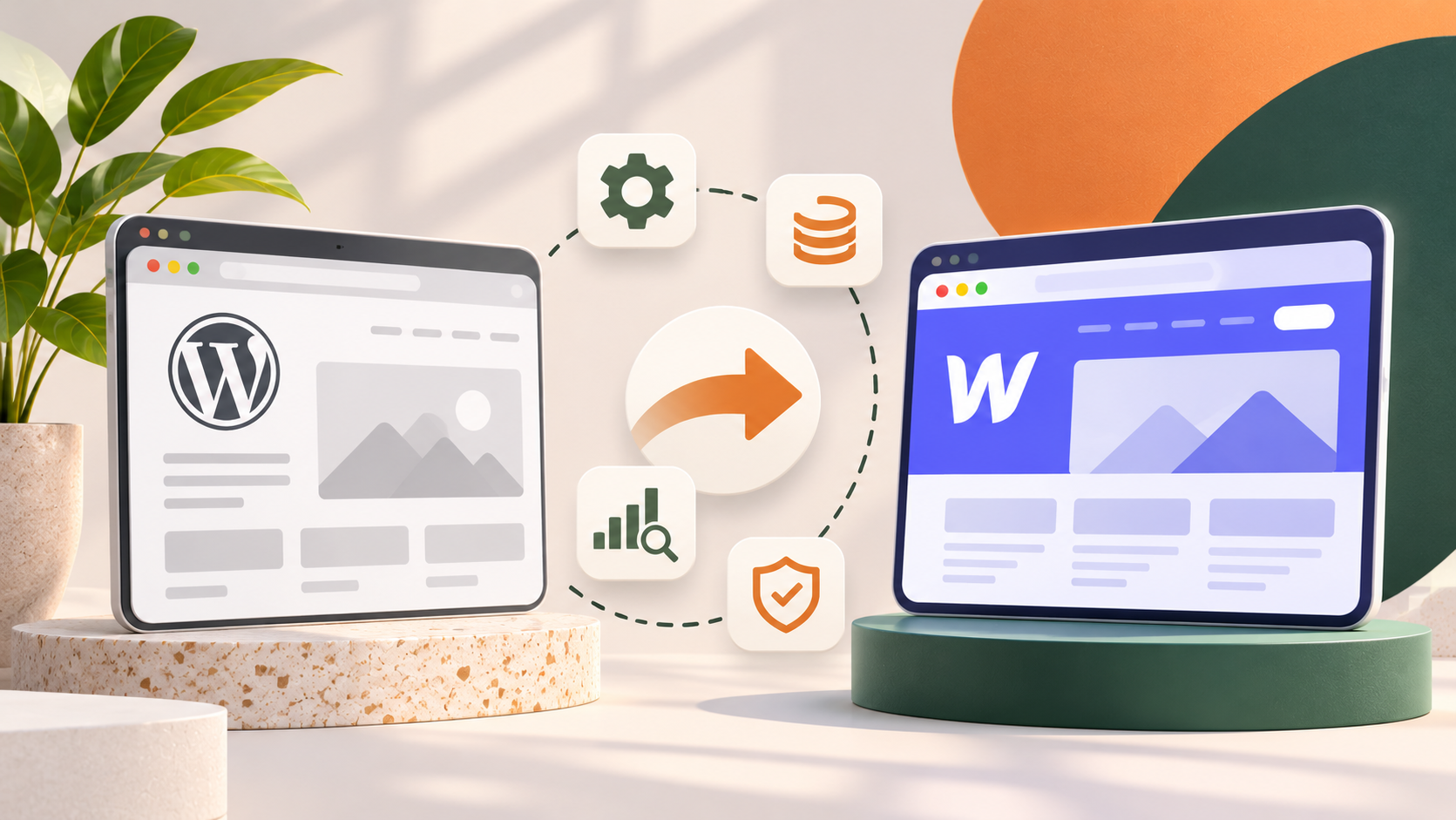
For many growing companies, WordPress starts to feel like a bottleneck. Simple page updates wait in a developer queue, plugin updates break layouts, and security patches eat into time that should go to marketing. Moving to Webflow can fix much of that, giving your team a site they can update, launch, and scale without constant technical support.
But a WordPress to Webflow migration is more than a rebuild. Your current site has years of rankings, backlinks, and lead-generating pages behind it. A migration pays off only when it's planned to protect that value, not just to move content from one platform to another.
This article covers why businesses make the switch, what the move actually involves, the step-by-step process, what drives the cost, and the SEO risks that can quietly cost you traffic and leads.
Why businesses move from WordPress to Webflow
Most teams don't switch platforms for the technology itself. In practice, the Webflow vs WordPress decision comes down to whether the current setup is slowing down marketing and adding cost behind the scenes.
Faster launches without developer bottlenecks. In Webflow, marketers can edit pages, publish blog posts, and update CMS content in a visual editor without touching code. Campaign pages and content updates go live in hours instead of waiting for a development sprint.
Less maintenance to manage. WordPress sites depend on themes and plugins that need regular updates, and each update carries the risk of conflicts. Webflow handles hosting, SSL, and platform updates for you, so there's no plugin stack to patch and monitor.
Consistent design as the site grows. Webflow's class-based styling and reusable components make it easier to keep new pages on brand. That matters when several people publish content and the site keeps expanding.
That said, Webflow isn't the right fit for every business. If your site relies on a large WooCommerce store, membership functionality, or plugins that power core business features, staying on WordPress and investing in a stronger build can be the smarter decision. In that case, working with a WordPress development agency to modernize your current site may deliver more value than a platform switch.
What a migration actually involves
A migration is not a one-click transfer. Some parts of your WordPress site move over with the right preparation, while others have to be rebuilt from scratch.
Can you convert WordPress to Webflow automatically?
You can automate part of the content move. Posts and other structured content can be exported from WordPress and imported into Webflow CMS Collections, usually through a CSV file or a migration tool.
What you can't convert is your theme or your plugins. WordPress themes and plugins run on PHP and the WordPress database, and none of that carries over to Webflow. Every layout, template, and feature has to be rebuilt.
This is where many DIY budgets go wrong. Teams plan for a content transfer and then discover that the design, functionality, and SEO setup make up most of the real work.
The WordPress to Webflow migration process
A successful WordPress to Webflow migration process follows the same principles as any website migration process, with a few steps that are specific to how Webflow is built. Each step below protects something your business depends on.
Audit and benchmark your current site
Before anything moves, document what your current site is worth. Crawl the full site to get a list of every URL, then pull performance data from Google Search Console and Google Analytics.
Focus on the pages that matter most to the business:
- Pages that bring in the most organic traffic
- Pages that generate leads, demo requests, or sales
- Pages with valuable backlinks from other sites
- Keywords and rankings you want to protect
This baseline lets you prioritize during the build and measure whether the migration worked after launch. It's also the right time to decide what not to migrate. Outdated or thin content can be consolidated or retired instead of rebuilt, which reduces both cost and clutter.
Plan the structure and map every URL
Next, plan how your content will be organized in Webflow. Blog posts, case studies, team members, and similar content types each become a CMS Collection with its own fields.
Then build a URL map: a spreadsheet that lists every old WordPress URL next to its new Webflow URL. Where the URL can stay the same, keep it. Where it has to change, the map becomes the source for your redirects. This document is one of the most important deliverables in the entire project.
Rebuild the design in Webflow
You have two options here: recreate your current design in Webflow or use the migration as a chance to redesign. A recreation keeps the project focused and makes it easier to isolate SEO changes after launch. A redesign costs more but lets you fix conversion and usability problems at the same time.
Either way, the build should include clean templates for each content type, responsive layouts for every breakpoint, and a component structure your team can use to create new pages without breaking the design.
Migrate and clean up content
Once the CMS Collections are ready, you can move your WordPress content into Webflow in bulk. Export your posts, clean the data, and import it into the matching Collections.
Plan time for cleanup. WordPress content often includes shortcodes, page builder markup, and inline styles that don't translate into Webflow's rich text fields. Images need to be re-uploaded with their alt text, and internal links inside the content need to point to the new URLs.
Rebuild SEO settings and set up 301 redirects
Your SEO plugin settings won't come with you, so they need to be rebuilt in Webflow:
- Title tags and meta descriptions for every page and CMS item
- Canonical tags
- Open Graph data for social sharing
- Schema markup, added through custom code on pages and CMS templates
- Sitemap and robots.txt settings
Then add 301 redirects for every URL that changes, using your URL map. Webflow manages redirects in the site settings and supports pattern-based rules, so a full folder can be redirected with one rule when the structure allows it.
QA, launch, and monitor
Before launch, test the site on its Webflow staging domain. Check every template, form, and integration, crawl the staging site for broken links, and test your redirects against the URL map.
After the domain is connected, submit the new sitemap in Google Search Console and monitor closely for the following weeks. Watch indexing reports, 404 errors, rankings for your priority keywords, and lead volume from organic traffic. Some movement right after a migration is normal, but steady declines on key pages need attention quickly.
How much does a WordPress to Webflow migration cost?
If you research pricing, you'll find quotes that range from a few thousand dollars to more than $30,000. That spread isn't random. Two migrations can look similar on the surface and require very different amounts of work.
The main cost drivers:
- Number of templates and unique pages. A site with a handful of page layouts costs far less than one with dozens of distinct templates.
- CMS complexity. A simple blog is straightforward. Multiple related Collections, such as posts linked to authors, categories, and case studies, take more planning and setup.
- Content volume and condition. Hundreds of posts full of shortcodes and old page builder markup take much longer to clean up than well-structured content.
- Recreation or redesign. Matching the current design is faster than creating a new one.
- Integrations and custom features. CRMs, marketing automation, gated content, search, and custom functionality all add development time.
- SEO migration work. URL mapping, redirects, metadata, and schema are often left out of low quotes, even though they protect your traffic.
Ongoing costs change too. With WordPress, you pay separately for hosting, premium plugins, security tools, and developer time for updates. With Webflow, you pay for a site plan and, for teams, a Workspace plan, and the platform handles hosting and maintenance. For many marketing sites, the long-term cost of ownership and the time your team saves matter more than the build price alone.
The hidden cost is a rushed migration. Lost rankings, broken redirects, and missing pages can reduce organic traffic and leads for months. Recovering from that often costs more than doing the migration properly the first time.
DIY, freelancer, or agency? A small brochure site with few pages can be a reasonable DIY or freelancer project. Once your site generates real traffic and leads, has a large blog, or depends on integrations, the risk grows. That's when working with a team that offers Webflow development services along with SEO migration planning makes the most sense.
SEO risks that can cost you traffic and leads
Most traffic losses after teams migrate WordPress to Webflow come from a small number of predictable problems. Here's what to watch for and how to prevent each one.
URL changes forced by Webflow's CMS structure
Many WordPress sites publish blog posts at the root of the domain, such as yoursite.com/post-name. Webflow doesn't allow that for CMS content. Every CMS item lives under its Collection's folder, so a post moves to a URL such as yoursite.com/blog/post-name.
This means a large share of your URLs may have to change, even if nothing else about the content does. Plan for it from the start, map every affected URL, and make sure each one has a redirect.
Missing or broken redirects
Missing redirects are one of the most common causes of lost rankings after a migration. When an old URL returns a 404 error, the backlinks and ranking signals tied to it are no longer passed to the new page.
Avoid redirecting everything to the homepage, which Google can treat as a soft 404. Point each old URL to its closest equivalent, avoid redirect chains, and test every rule before and after launch. Pattern-based rules help with folder changes, but root-level WordPress posts usually need individual redirects, since a wildcard at the root would catch every page on the site.
Titles, meta descriptions, and schema left behind in SEO plugins
Plugins like Yoast and Rank Math store your custom titles, meta descriptions, and schema in the WordPress database. None of it transfers automatically. If it isn't exported and rebuilt, pages end up with default titles and missing descriptions, which can lower click-through rates and cost you rich results.
Export this data during the audit, add matching CMS fields for SEO titles and descriptions, and rebuild your structured data through custom code on the relevant templates.
Image URLs and alt text
WordPress serves images from its own uploads folder. Webflow hosts assets on its own CDN with new file URLs, so every old image URL changes. Images that rank in Google Images or have backlinks can lose that visibility.
Re-add alt text during the content migration, and redirect high-value images and downloadable files, such as PDFs, that earn traffic or links.
Archive pages and internal links still pointing to old URLs
WordPress automatically creates category, tag, author, and date archives. Some of them rank or attract links, and they won't exist in Webflow unless you rebuild them. Decide which archives to recreate, which to redirect, and which to retire.
Internal links are the other half of this risk. Links inside migrated content often still point to old WordPress URLs. Even when redirects catch them, they slow down crawling and create unnecessary redirect hops. Update internal links to the final URLs before launch.
Speed losses from heavy scripts and interactions
Webflow sites can be very fast, but design choices can undo that. Large background videos, heavy animations, unoptimized images, and too many third-party scripts all slow pages down and can hurt both rankings and conversions.
Compare Core Web Vitals on key pages before and after the migration, compress media before uploading it, and add third-party scripts only where they serve a clear business purpose.
Planning a WordPress to Webflow migration?
A platform switch should make your marketing team faster without costing you the rankings and leads your current site already brings in. That comes down to planning: knowing which pages matter, mapping every URL, and launching with redirects and SEO settings already in place.
Our team plans and builds Webflow migrations with SEO planned into every step, from the pre-migration audit and URL mapping to the Webflow build and post-launch monitoring. You get a site your team can manage with ease, and your search visibility makes the move with it.